
How do I embed 360 images on Shopify?
SpinShot enables you to easily embed a 360° product spin into any Shopify product page by simply copying and pasting an embed link that is generated by the SpinShot system. First you need to create an SpinShot account here and create some 360 spins. Once you have done that simply follow the instructions below to publish your 360 views on Shopify product pages.
Step 1: Sign up with SpinShot
- Create your SpinShot account at www.spinshot.io
Step 2: Add Javascript to your theme
-
Log in to your Shopify account
-
Navigate to your theme editor through Online Store > Themes in the navigation on the left hand side
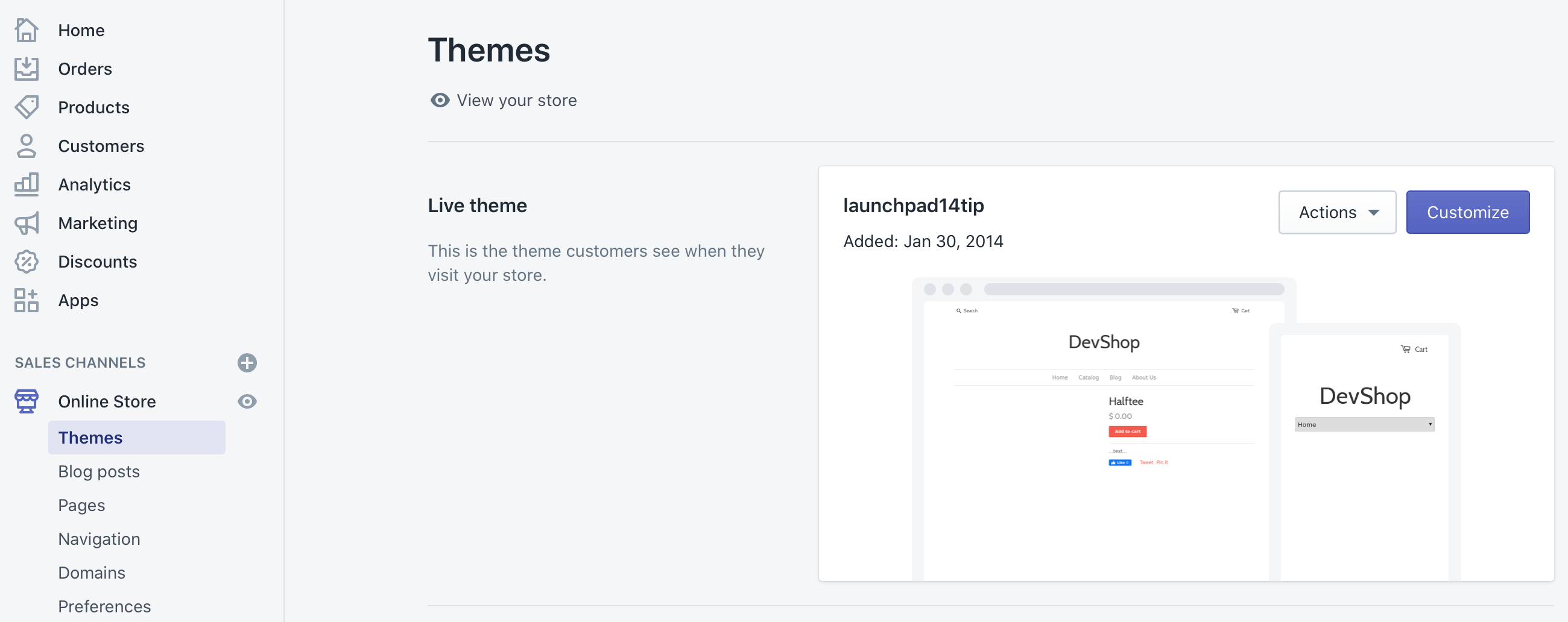
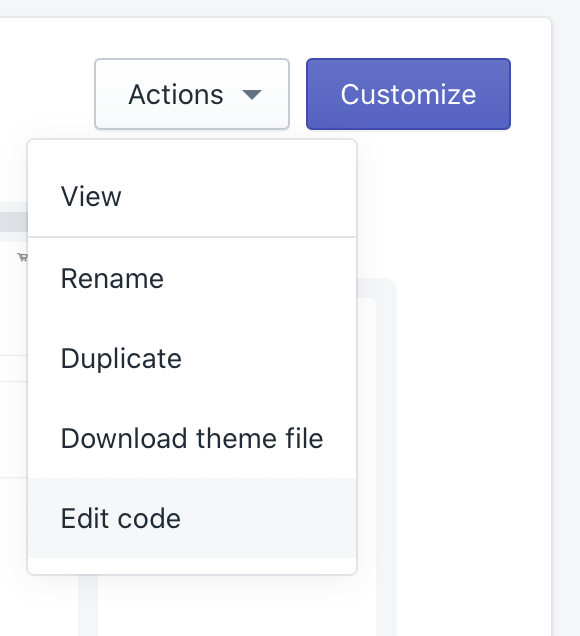
- Select the active theme and click on Actions > Edit Code
- Open index.liquid (theme.liquid with more recent versions of Shopify)
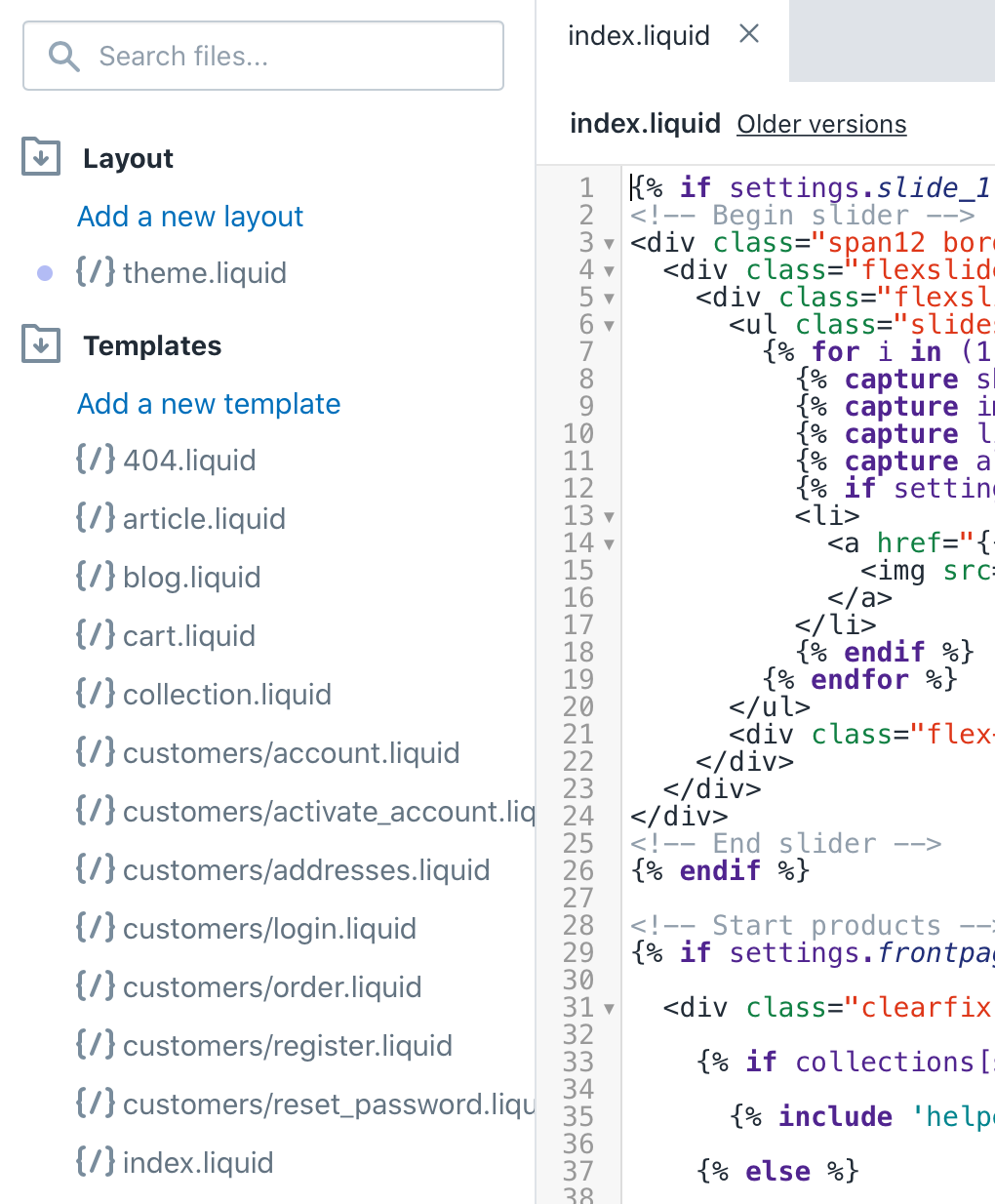
- Insert the following Javascript at the bottom of the index.liquid. If you are adding the code into the theme.liquid, make sure to add it right before the closing </body> tag.
<script>
window.spinshot = {};

// CONFIGURATON BEGIN
// CSS path to find the image container: please adjust to match the container holding your images, depends on the theme
window.spinshot.container_path = ".product__media-list";
// CONFIGURATON END

(function() {
  // Act on product pages only
  if (location.href.indexOf("/products/") > -1) {
    // Find container
    window.spinshot.container = document.querySelector(window.spinshot.container_path);
    // Find images
    window.spinshot.images = window.spinshot.container.querySelectorAll('img[alt*="spinshot"]');
    for (let image of window.spinshot.images) {
      // Find SpinShot UUID
      let uuid = image.alt.match(/.*spinshot.*\/([\d\w-_]+).*/)[1];
      // Stop if no UUID provided
      if (!uuid) return;
      // Find dimensions (optionally, try using width instead of offsetWidth and height instead of offsetHeight)
      let width = image.offsetWidth;
      let height = image.offsetHeight;
      let ratio = height / width;
      // Build SpinShot iframe
      let iframe = '' +
        '<div class="spinshot" ' +
        'style="margin: 0 auto; padding: ' + Math.round(100 * ratio) + '% 0 0 0; width: 100%; position: relative;">' +
        '<iframe src="https://embed.spinshot.io/' + uuid + '" allowfullscreen frameborder="0" scrolling="no" style="background-color: #fff; position: absolute; top: 0; left: 0; width: 100%; height: 100%;"></iframe>' +
        '</div>';
      // Insert SpinShot iframe
      image.parentElement.parentElement.innerHTML = iframe;
    }
  }
})();
</script>
- Click the “Save” button
Step 3: Add a 360 product image to a Shopify product page.
-
Log into your SpinShot account and find the product view you want to add.
-
Click “Embed” and choose the “URL” tab.
-
Copy the embed code. It should look like this: http://embed.spinshot.io/PQUDbEJO_N4
-
Log into your shopify account.
-
Navigate to the product page you want to edit.
-
If you haven’t already done so, add a static product image like you normally would.
-
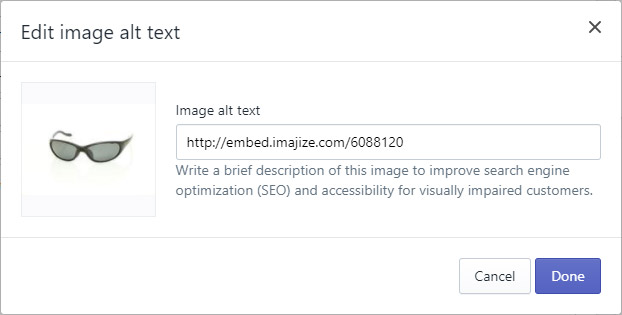
After the image has been uploaded, hover over the image preview and then click “ALT”
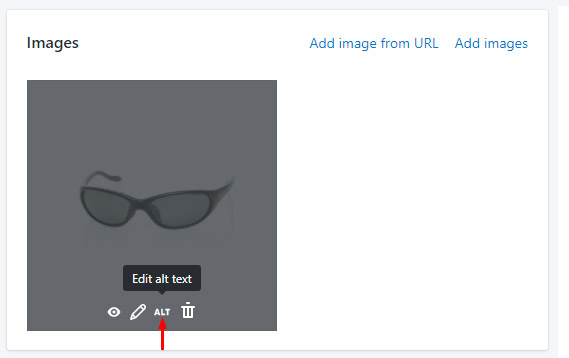
- Now paste the embed code that you copied from the SpinShot Embed page.
-
That’s it! You will now see the 360 view on your product page.
-
Repeat Step 3 for each 360 view
Here is an example of an SpinShot 360 viewer in action.