This article documents the Fast frame extraction API (fast.spinshot.io). It is optimized for logical frames: frame number, percentage around the spin (50p), or degrees (180d / 180deg).
Direct product image URLs use a different address format: they encode where the file is stored (revision, row, file name, or a full images/… path) and do not follow the frame‑extraction syntax below. For a comparison, hostname rules, and patterns such as frames, stills, gallery, and images, see Media CDN API.
To extract an individual frame out of a 360 view, use the following syntax:
http://fast.spinshot.io/[UUID]/frames/[FRAME_NUMBER]/[KEY1]_[VALUE1];[KEY2]_[VALUE2].[FORMAT]
- [UUID]: Your 360 view (variant) identifier.
-
[FRAME_NUMBER]: Frame index (e.g.
19), or percentage (e.g.50p), or degrees (e.g.180dor180deg). -
[KEY]_[VALUE]: Modifiers separated by semicolons (e.g.
w_1024;q_80). Order does not matter. -
.[FORMAT]: Output format:
.jpg,.png, or.webp.
Please note: when calling an individual URL for the first time, it may take a moment to render the image. Subsequent calls will be cached and load immediately.
Frame
You may specify a frame directly by providing its frame number:
https://fast.spinshot.io/6438673/frames/19/w_1024.jpg
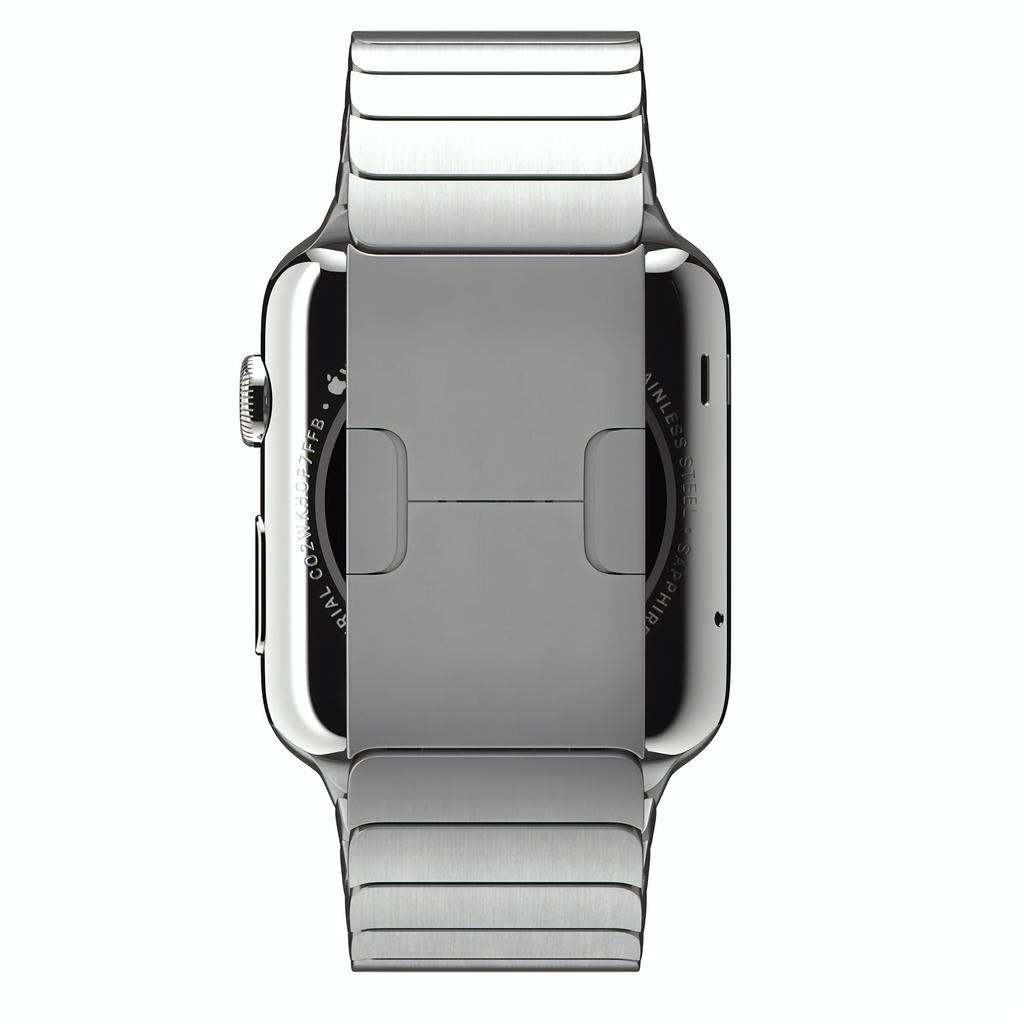
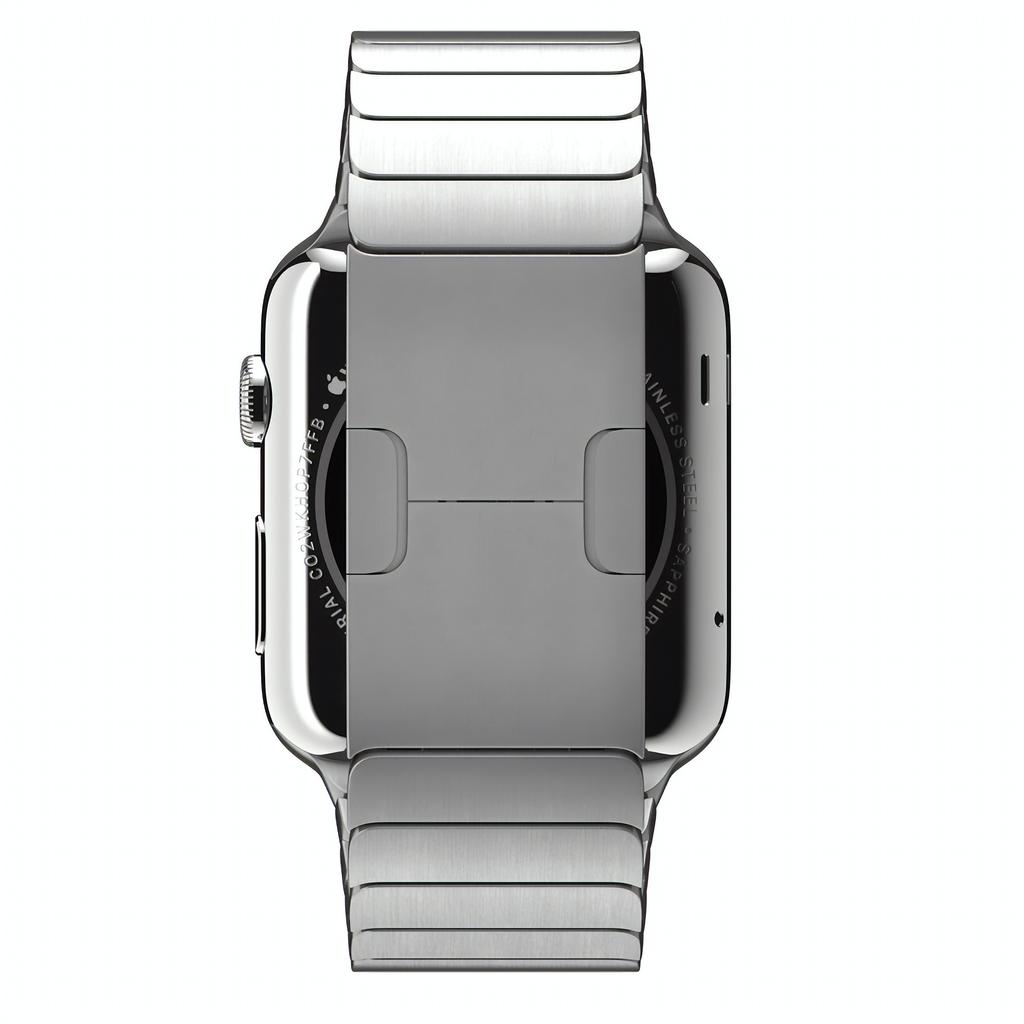
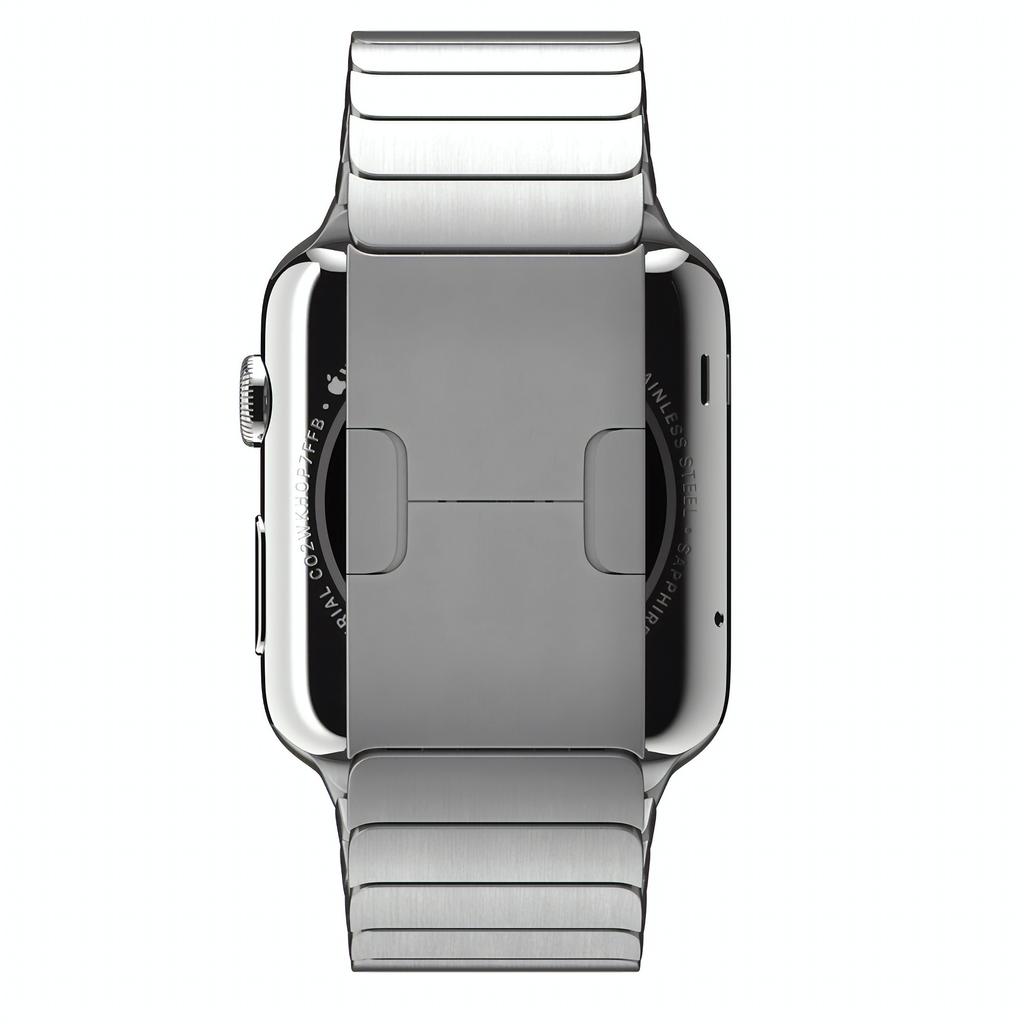
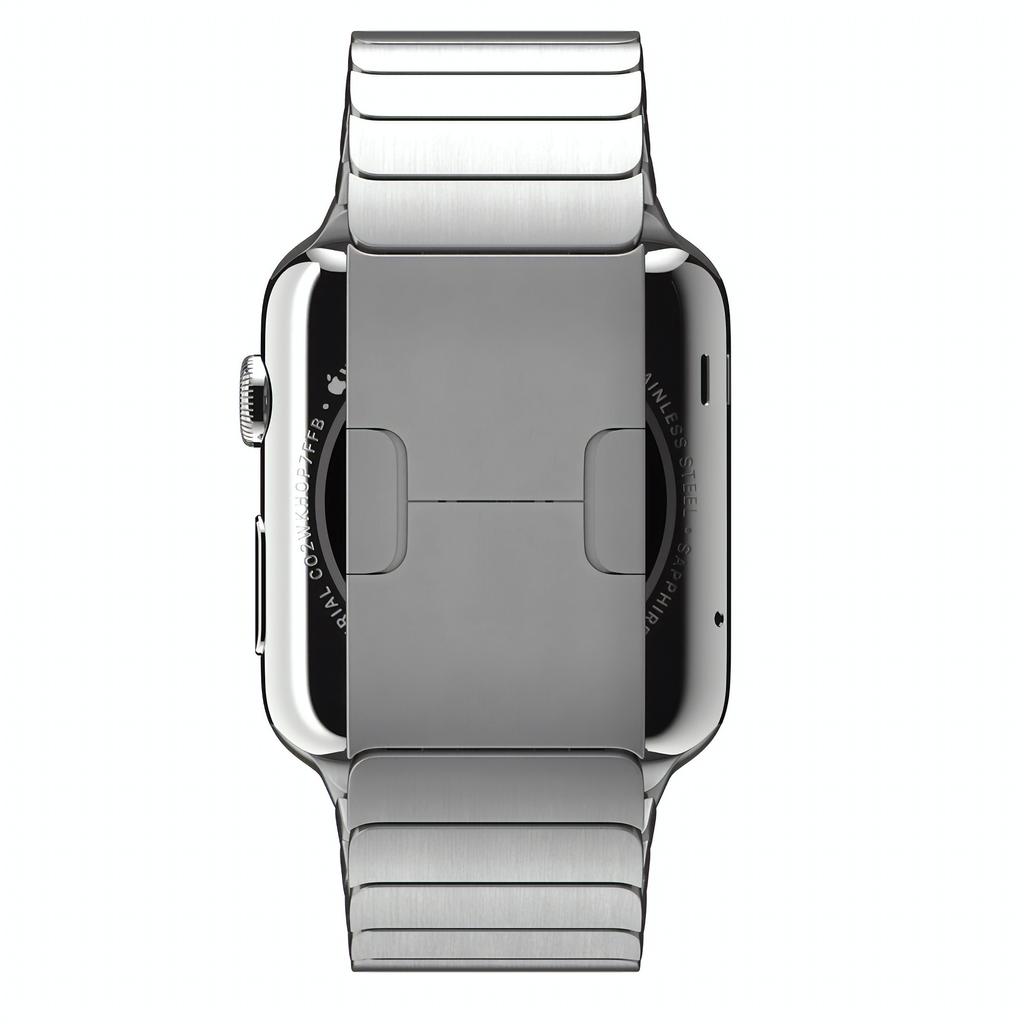
Instead of specifying a frame number, you may also use a percentage or degree value: 50p (percentage, e.g. 50% around the spin) or 180d / 180deg (degrees), which render the corresponding facing image of your 360 view.
The following examples use different ways to identify the frame:
https://fast.spinshot.io/6438673/frames/50p/w_1024.jpg
https://fast.spinshot.io/6438673/frames/180d/w_1024.jpg or https://fast.spinshot.io/6438673/frames/180deg/w_1024.jpg
To modify the resulting image and add transformations, you may use one of the following modifiers:
w
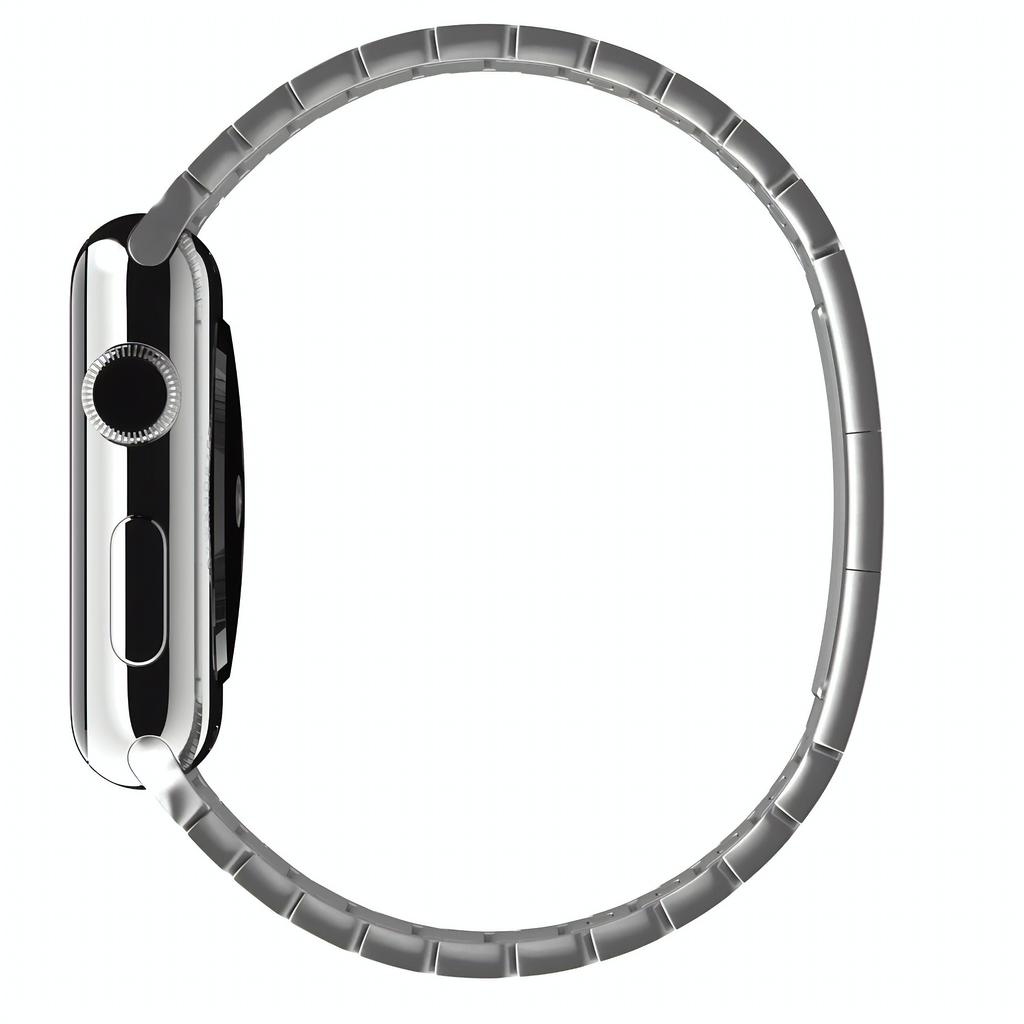
Sets the width.
Allowed Arguments: Any number between 1 and 5120.
Example: https://fast.spinshot.io/6438673/frames/10/w_1024.jpg
h
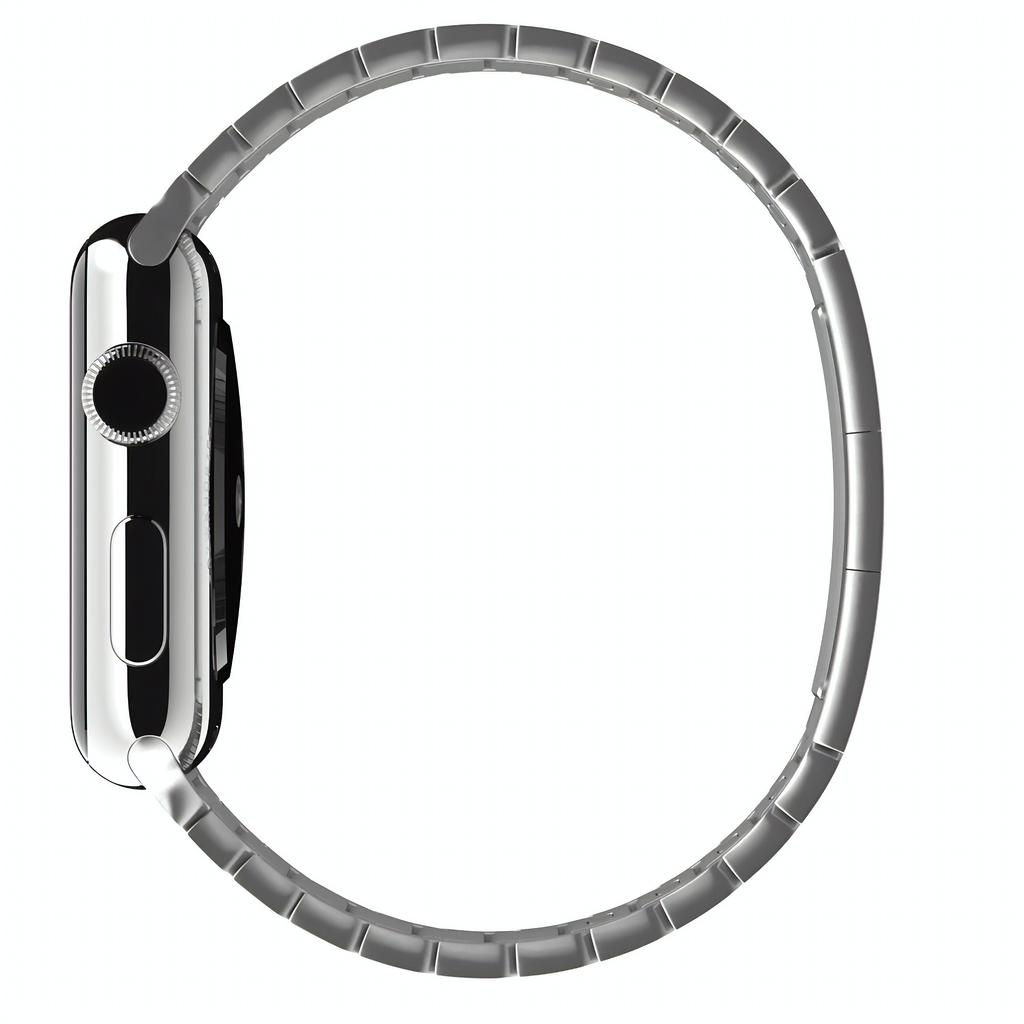
Sets the height.
Allowed Arguments: Any number between 1 and 5120.
Example: https://fast.spinshot.io/6438673/frames/10/h_1024.jpg
q
Sets the quality.
Allowed Arguments: Any number between 1 and 100.
Example: https://fast.spinshot.io/6438673/frames/10/w_1024;q_50.jpg

format
Sets the output image format. Use the file extension in the URL (.jpg, .png, or .webp).
Allowed Arguments: jpg, png, webp (via the URL extension, e.g. image.png).
Example: https://fast.spinshot.io/6438673/frames/10/w_1024.png

fit
Sets how the image fits into the provided width and height.
Allowed Arguments: inside (default), contain.
- inside: Resize the image to be as large as possible while ensuring its dimensions are less than or equal to both those specified, while preserving the aspect ratio.
- contain: Contain the image within the given dimensions while preserving aspect ratio. Adds the specified background color to the remaining space.
Example: https://fast.spinshot.io/6438673/frames/10/w_1024;h_1960;fit_contain.jpg

background
Sets the background color, applied when fit: contain is chosen.
Allowed Arguments: Any hexadecimal color value without the # sign.
Example: https://fast.spinshot.io/6438673/frames/10/w_1024;h_1960;fit_contain;background_FF0000.jpg

crop
Sets the crop mode (e.g. trim transparent or same-colored edges).
Allowed Arguments: trim.
Example: https://fast.spinshot.io/6438673/frames/10/w_1024;crop_trim.jpg

extend
Extends the canvas size equally to all sides.
Allowed Arguments: Any value between 1 and 5120. The total resulting dimensions may not exceed 5120 (width or height).
Example: https://fast.spinshot.io/6438673/frames/10/w_1024;extend_150.jpg

extend.top, extend.right, extend.bottom, extend.left
Extends the canvas by a given number of pixels on one side. Use extend.top_, extend.right_, extend.bottom_, or extend.left_ with the pixel value.
Allowed Arguments: Any value between 1 and 5120. The total resulting dimensions may not exceed 5120 (width or height).
Examples:
- Top: https://fast.spinshot.io/6438673/frames/10/w_1024;extend.top_150.jpg → Preview
- Right: https://fast.spinshot.io/6438673/frames/10/w_1024;extend.right_150.jpg → Preview
- Bottom: https://fast.spinshot.io/6438673/frames/10/w_1024;extend.bottom_150.jpg → Preview
- Left: https://fast.spinshot.io/6438673/frames/10/w_1024;extend.left_150.jpg → Preview


extend.background
Sets the background color used for the extended canvas area (e.g. when using extend, extend.top, etc.).
Allowed Arguments: Any hexadecimal color value without the # sign.
Example: https://fast.spinshot.io/6438673/frames/10/w_1024;extend_150;extend.background_FF0000.jpg
